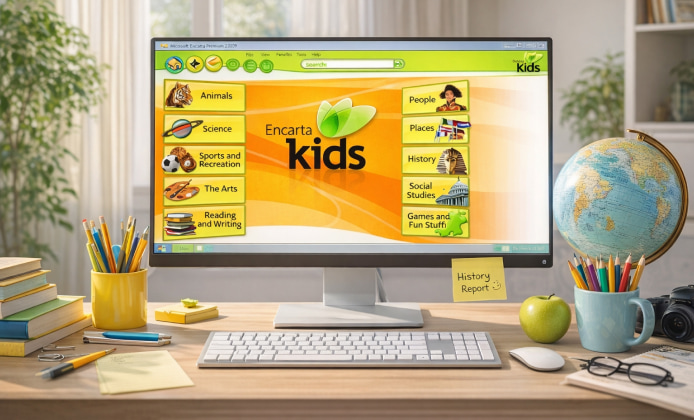
Microsoft Encarta is a classic reference title that many people still enjoy for its offline articles, rich media, and simple navigation. This guide focuses on getting it running smoothly on modern computers, including tips for compatibility, disc images, and common setup errors.
Before You Start: What You’ll Need
- A Windows computer with administrator access.
- Your Encarta CD/DVD set or a legally obtained disc image of the same edition.
- Enough free storage for media files, indexes, and optional content.
- A stable input device (mouse/trackpad) because some menus are easier to navigate with a pointer.
Many editions ship with multiple discs, so plan ahead if you want to keep everything available without swapping media repeatedly. If your device has no optical drive, a USB DVD drive can help, or you can mount a disc image in Windows.
Quick Compatibility Notes
Encarta was built for older Windows versions, so modern systems sometimes need compatibility settings. The safest approach is to install first, then adjust settings only if something fails (for example, launch issues, missing fonts, or multimedia playback problems).
| Scenario | Recommended Approach |
|---|---|
| No disc drive available | Use a USB DVD drive or mount a disc image in Windows |
| Installer won’t start | Run as Administrator and try Windows compatibility mode |
| Crashes during launch | Adjust display settings, update codecs, or reinstall from clean media |
| Media prompts keep appearing | Choose a full install option if available, or keep the primary disc mounted |
Step-by-Step Installation
- Prepare Your System. Close other programs before setup to avoid conflicts and permission issues. Make sure Windows updates are complete, then restart your computer so the system is in a clean state for the installation.
- Start the Setup. If you are using an original disc, insert it and wait for AutoPlay. When AutoPlay doesn’t appear, open File Explorer and run the installer Encarta file from the disc’s root directory.
- Choose Install Type and Location. During install Encarta prompts, select an install directory with enough free space. If you see options like “Typical” and “Complete,” the complete option usually reduces disc swapping and improves offline access.
- Follow Prompts and Finish. When Encarta install screens appear, accept the license terms, confirm the target folder, and let the installer complete. If you’re asked for additional discs, insert or mount them as requested and continue. Tip: If setup fails halfway through, uninstall the partially installed version, reboot, and try again with antivirus temporarily paused (only if you trust the media source), then re-enable protection immediately afterward.
How to Run Encarta on Modern Windows
After installation, try launching it normally first. If the program doesn’t open, right-click the shortcut, select Properties, and use Compatibility settings (for example, running as administrator or choosing an older compatibility mode). This approach often helps when you install Encarta on Windows 10 or Windows 11.
- Launch issue: Try “Run as administrator.”
- Display glitches: Test different scaling or reduced color mode.
- Audio/video not playing: Install common media components and check system codecs.
Installing on a Desktop or Laptop
For most users who want to install Encarta on PC, the process is straightforward as long as your media is readable. If you encounter read errors, clean the disc carefully or try a different drive. Disc image mounting can also reduce physical read problems.
Optional: App-Style Setup and Shortcuts
Some people prefer a more “app-like” experience with pinned shortcuts and a clean start method. To make daily use easier after you install Encarta app style access, pin the program to Start or the Taskbar and keep the primary disc mounted when required.
Troubleshooting Common Problems
- Run the setup file as administrator.
- Copy the disc contents to a local folder and run setup from there.
- Disable unnecessary startup utilities temporarily to avoid conflicts.
“Insert Disc” Prompts Even After Installation
- Confirm you chose a complete install option if the edition supports it.
- Keep the main disc inserted or mounted during use.
- Check that the drive letter did not change between install and launch.
Program Opens but Media Is Missing
- Install additional content packs if your edition includes them.
- Verify your installation path hasn’t been moved or renamed.
- Re-run setup and select repair if available.
Safe Source and Legitimacy Notes
To download and install Encarta, use only legitimate sources you trust, such as original discs you own or properly licensed copies. Avoid unknown bundles that may contain unwanted software, and scan any downloaded files before running them.
Can You Install Without Paying?
Some editions may be available through legitimate second-hand markets or included with older PC bundles; however, always respect licensing terms. If you are trying to install Encarta for free, ensure you are using a lawful copy and that the edition’s license allows your intended use.
Final Checklist
- Installation completes without errors and the program launches.
- Shortcuts are pinned for quick access.
- Disc or disc image is available if your edition requires it.
- Compatibility settings are applied only if needed.
- Media content (audio/video) plays correctly.
If you still run into problems, reinstall using clean media, confirm you have the right edition discs, and consider testing in a Windows virtual machine for maximum compatibility. Once you’re ready, you can proceed to install Encarta and start exploring the encyclopedia’s articles, timelines, maps, and interactive content again.

 Bring Encarta App Back to Life: A Practical Installation Guide
 Revisiting Encarta on Mac: Bringing a Classic Encyclopedia to Modern macOS
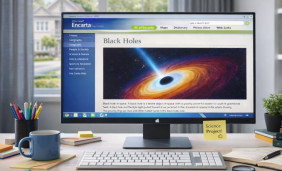 What a Full Version of Encarta Offers and How to Use It Today
 How to Use Encarta App for Free: Practical Options and Safer Alternatives
 What Is Encarta and How to Use?
 Best Apps Similar to Encarta