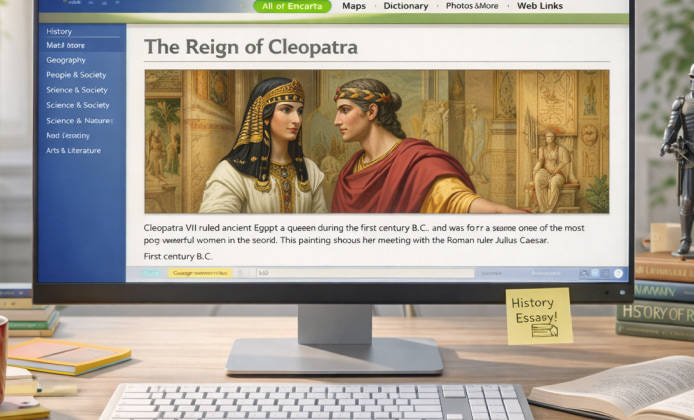
Long before streaming video explainers and endless tabs, CD-ROM encyclopedias made learning feel hands-on, fast, and surprisingly fun. For many nostalgia-driven learners, Encarta on Mac can still feel like a time capsule worth opening on modern hardware.
This guide focuses on practical, legal, and safe ways to access the content you already own, plus a few comfort tweaks that make reading, searching, and browsing smoother on current Macs. Because Encarta was designed for an earlier era of Windows and classic media formats, the “best” approach is usually about choosing the least-fragile setup rather than forcing native compatibility.
What You’ll Need Before You Start
- A Mac running a recent version of macOS, with at least 8 GB of RAM (16 GB is even better for virtual machines).
- Original Encarta discs or a disc image you created from your own media.
- One of these helper tools: a virtual machine app (recommended), or a compatibility layer if you’re comfortable troubleshooting.
“The easiest way to keep vintage software usable is to preserve the environment it expects, not to fight the operating system it never knew.”
Choose a Running Method That Matches Your Goal
If you want reliability and minimal tinkering, a Windows virtual machine is typically the most stable option on modern Macs. If you want a lighter footprint, you can explore compatibility layers, but expect more trial and error with older installers, multimedia codecs, and disc checks.
| Method | Best for | Trade-offs |
|---|---|---|
| Windows virtual machine | Maximum compatibility and fewer surprises | Uses more disk space and RAM |
| Compatibility layer | Quick tests and lighter installs | Older multimedia features may break |
| Second, older Mac setup | Authentic experience on period-correct hardware | Harder to maintain and less secure |
Recommended Setup: Virtual Machine Workflow
- Create (or locate) a disc image from your original Encarta media using a trusted disk utility.
- Install a Windows VM on your Mac and create a clean Windows profile dedicated to legacy apps.
- Mount the disc image inside the VM and run the setup program as an administrator.
- After installation, take a VM snapshot so you can roll back easily if anything changes later.
If you own original media, Encarta on Macintosh often works best through a Windows virtual machine that keeps files isolated.
Licensing and Safe Sourcing
Encarta is discontinued, which makes it tempting to grab random uploads, but those often include modified installers or bundled extras you don’t want. The safest approach is to use discs you already have, create your own backups, or purchase legitimate second-hand media from reputable marketplaces. To stay on the right side of licensing, many people choose to download Encarta for Mac only from copies they already own or reputable second-hand sellers.
Installation Notes and Common Pitfalls
- Disc prompts: Some versions check for a disc even after installation, so keeping a mounted image can prevent repeated prompts.
- Audio/video issues: Older interactive content may depend on legacy codecs; if playback fails, try a different Windows version inside the VM or install older multimedia components within that environment.
- Permissions: If the installer fails to write files, run it as administrator and confirm the VM’s folder permissions.
With a bit of preparation, you can install Encarta app on Mac by running the installer inside a VM and sharing a folder for saves.
Make It Feel Native on macOS
Even though the program runs in a Windows environment, you can still make the experience feel smoother on a Mac:
- Pin the VM window size to a comfortable reading layout and increase display scaling for crisp text.
- Use shared folders to export notes, copied excerpts, and saved images into macOS for easier organization.
- Create a simple “Study” folder structure (Topics, Quotes, Images, Timelines) so your research stays tidy.
- Bookmark frequently used entries inside the encyclopedia and keep a parallel list of macOS bookmarks for related modern sources.
When you want tighter integration, you can get Encarta for Mac OS functionality by pairing the app with macOS search shortcuts and bookmarked topics.
Performance Tips for Laptops
Portable Macs can run vintage software comfortably, but small tweaks help prevent lag during media-heavy sections:
- Allocate enough RAM to the VM, but don’t starve macOS of memory (balance matters more than maxing sliders).
- Store the disc image and VM files on fast internal storage rather than an external drive.
- Turn off unnecessary VM visual effects and keep background apps minimal while browsing multimedia pages.
On laptops, it helps to download Encarta on MacBook onto local storage so disc images don’t stutter while you browse.
Quick Troubleshooting Checklist
- If setup won’t launch, re-mount the disc image and try running the installer as administrator.
- If videos or narration don’t play, test another Windows version in the VM and confirm audio output settings.
- If the app crashes on a specific feature, disable enhanced graphics in the VM and retry that section.
- If performance drags, reduce background processes and move VM files to faster storage.
Good Alternatives When You Want a Modern Encyclopedia Feel
If your main goal is browsing knowledge (not specifically Encarta), consider pairing your vintage setup with modern references for cross-checking facts and getting updated context. A “then and now” workflow is surprisingly effective: use Encarta for its curated, offline, era-specific lens, then verify dates, names, and modern discoveries with current sources. With the right setup, you can preserve the charm of classic interactive learning while keeping your Mac secure, stable, and comfortable to use.

 Bring Encarta App Back to Life: A Practical Installation Guide
 Revisiting Encarta on Mac: Bringing a Classic Encyclopedia to Modern macOS
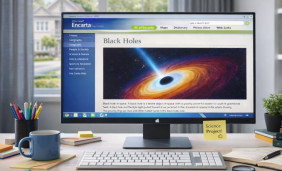 What a Full Version of Encarta Offers and How to Use It Today
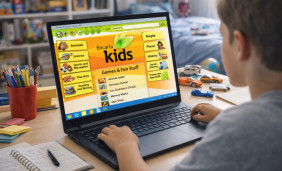 How to Use Encarta App for Free: Practical Options and Safer Alternatives
 What Is Encarta and How to Use?
 Best Apps Similar to Encarta